
Sumsub Integration
The Sumsub integration connects your Sumsub account directly to the Corsa platform. All Know Your Customer (KYC) verification results and applicant data are automatically synced from Sumsub into your Corsa dashboard via real-time webhooks.
This ensures a seamless, automated workflow, so your compliance team always works with the most up-to-date verification information from Sumsub. The result: less manual duplication, fewer silos, and more time to focus on what matters — identifying risks faster and protecting your business and customers.
How It Works: A Simple, Automated Flow
The integration is designed to be seamless and work for you in the background. Here's a step-by-step look at how it operates:
Secure Connection
You start by securely linking your Sumsub account to Corsa. This is a one-time setup that authorizes Corsa to receive verification information from Sumsub on your behalf. All credentials are fully encrypted and securely stored.
Automatic Real-Time Syncing
Corsa receives real-time webhook notifications from Sumsub whenever new verifications are created or existing verifications are updated. These events are instantly processed and synced directly into your Corsa dashboard. No manual imports, no stale data — just one consistent source of truth with real-time updates from Sumsub.
Keeping Everything Up-to-Date
The integration ensures your verifications are always accurate and never duplicated:
- New Verifications: When a new verification appears in Sumsub, it's automatically created in Corsa via webhook.
- Updates: If a verification changes in Sumsub (e.g., review status or verification result), that update is instantly reflected in Corsa through real-time webhook notifications.
This real-time sync guarantees your Corsa dashboard always has the latest verification information from Sumsub, saving time and reducing errors.
Prerequisites
Before you begin, ensure that:
- You have owner access to the Corsa application.
- You have a Sumsub account with permission to generate API credentials and configure webhooks.
Setting Up the Sumsub Integration
-
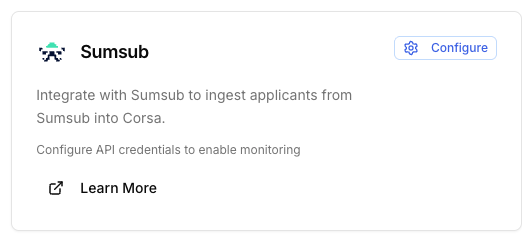
Navigate to Integration Settings
- Log in to Corsa.
- Go to Developers Hub → Integrations.
-
Click on the
Configurebutton to begin the configuration process -
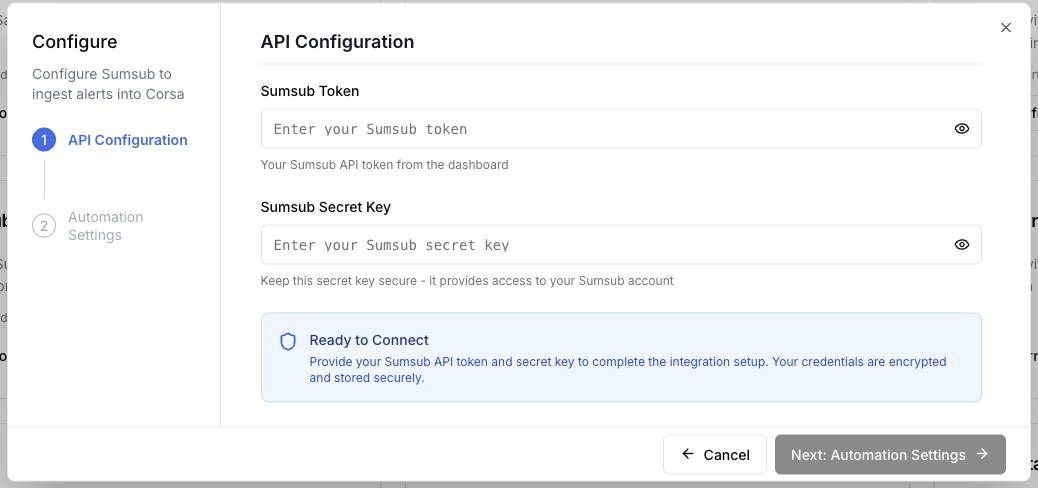
Enter Sumsub Credentials - you will need to:
-
Log in to your Sumsub account and navigate to the Dev space section.
-
Go to App tokens
-
Create a new API key:
- Click "Generate app token" or "Add New Key"
- Give your API key a descriptive name (e.g., "Corsa Integration")
- Copy and save the following credentials:
- API Token (also called App Token or Access Token)
- API Secret Key (also called Secret Key or Access Secret) Important: Save these credentials securely. You'll need them in the next step. The secret key is only shown once when created.
-
Enter the credentials into Corsa:
-
-
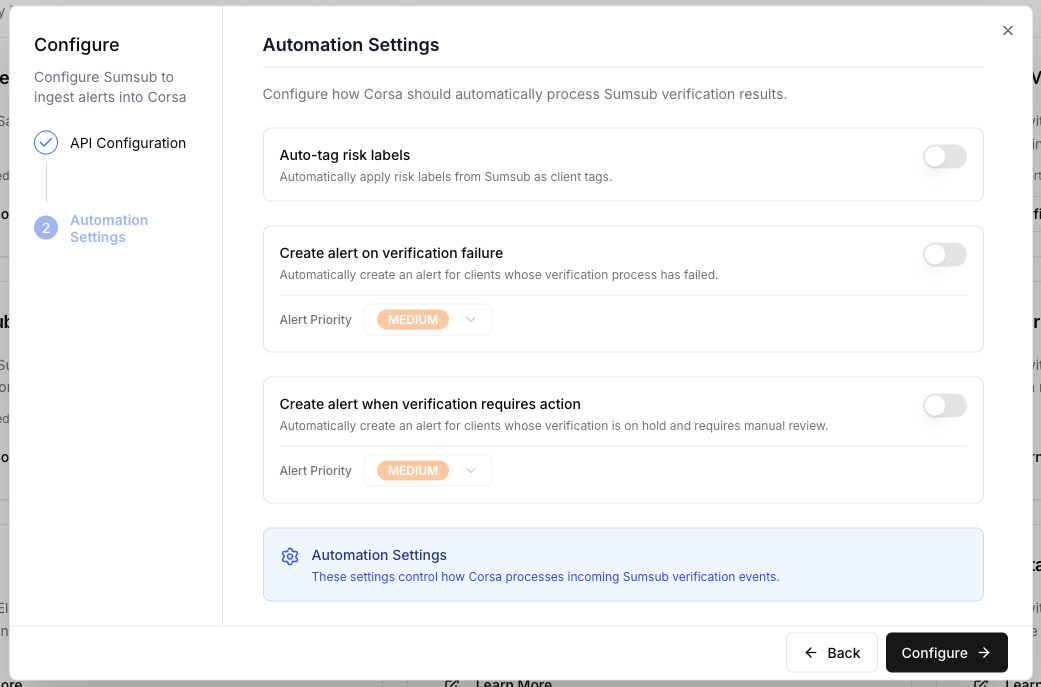
Configure Automation Settings - customize how Corsa processes Sumsub verification events:
- Auto-tag risk labels in client profile - Enable this option to automatically apply risk labels from Sumsub as client tags in Corsa.
- Create alert on verification failure - Enable this option to automatically create an alert when a client's verification process fails. Select the priority level (Low, Medium, or High) for these alerts.
- Create alert when verification requires action - Enable this option to automatically create an alert when a client's verification is on hold and requires manual review. Select the priority level (Low, Medium, or High) for these alerts.
- Click "Configure" to save your settings.
-
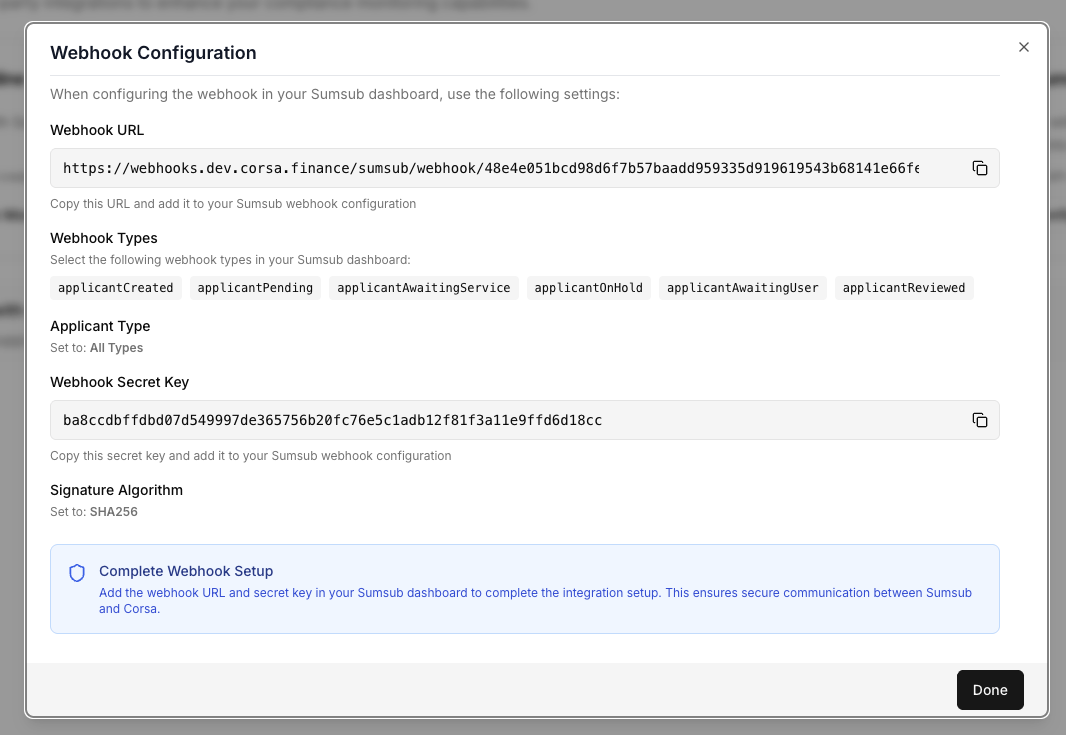
After saving, the webhook configuration will appear on the screen:
-
Configure the webhook with the values generated by Corsa - you will need to:
- Navigate to Webhook manager in your Sumsub dashboard (usually under Dev space → Webhooks → Webhook manager).
- Create a new webhook:
- Click "Create Webhook"
- Add an informative name (e.g., "Corsa Integration Webhook")
- Enter your Corsa webhook URL:
- Copy the webhook URL from the "Webhook Configuration"
- Paste it into the webhook URL field in Sumsub
- Select applicant types: Choose "All types" to receive events for both individual and company applicants
- Set signature algorithm: Select SHA256 (HMAC_SHA256_HEX)
- Enter your Corsa Secret Key:
- Copy the webhook secret key from the "Webhook Configuration"
- Paste it into the secret key field in Sumsub
- Select the events you want to receive:
applicantCreated- When a new applicant is createdapplicantPending- When an applicant is pending reviewapplicantAwaitingService- When an applicant is awaiting serviceapplicantOnHold- When an applicant is on holdapplicantAwaitingUser- When an applicant is awaiting user actionapplicantReviewed- When an applicant review is completed
-
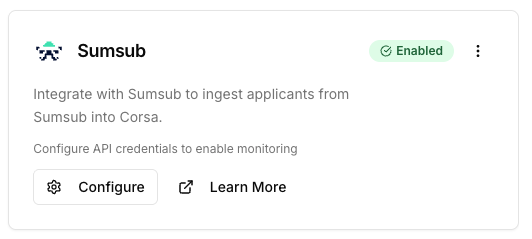
If the configuration was successful you should see it in an enabled status:
- Viewing webhook configuration later
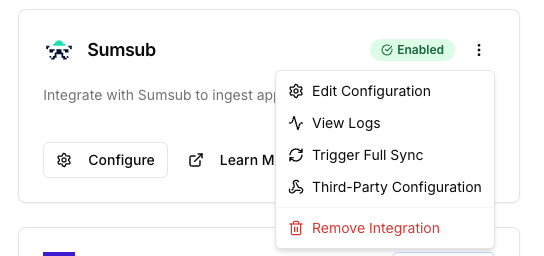
- If you need to retrieve the webhook configuration later, you can click the "Third-Party Configuration" button in the Corsa integration settings.
Historical Verification Import
In addition to real-time syncing, Corsa can import historical verifications from Sumsub for your existing clients.
Prerequisites:
Before importing verifications for a client, you must add their Sumsub Applicant ID to the client record in Corsa. This links the Corsa client to their corresponding applicant in Sumsub.
You can do this by:
- Updating an existing client via the Corsa API with the Sumsub Applicant ID.
- Creating a new client via the Corsa API and including the Sumsub Applicant ID.
How to Trigger the Sync:
Ensure the Sumsub Applicant ID is set on the relevant client records in Corsa.
- Go to Settings → Integrations → Sumsub.
- Click the "Trigger Full Sync" button.
- Corsa will then fetch verification history from Sumsub for all clients that have a Sumsub Applicant ID but haven't been synced yet.
What Gets Imported:
- Applicant verification data and results
- Review statuses and decisions
- All associated verification documents and checks
After the Sync: Once a client's verifications have been imported, they are marked as synced and won't be re-imported on subsequent syncs- only new activity will come through via real-time webhooks.
Automatic Client Matching
When a new verification is received via webhook, Corsa automatically links it to the correct client record using the Sumsub Applicant ID.
- If a matching client exists: The client is updated with the latest verification data, documents, and status.
- If no matching client exists: A new client is automatically created in Corsa with the verification data from Sumsub.
Note: If you want to sync new clients from now on, you don't have to create them with a Sumsub ID in Corsa — they will be created automatically when their first verification is received from Sumsub.
Updated 17 days ago